














Before you start
Verification confirms that you are a real adult woman. It is a single live recording in three short stages — your face, your document, and both together — which you then review and send.
Have this ready:
- You are 18 or older and have a valid government-issued ID — a passport, national ID card or driving licence.
- On the document, the photo, your first and last name, your date of birth and the document number are clean and readable — not worn, covered or scratched.
- A well-lit room and a steady hand. Good light on your face and on the document is half the job.
A real moderator reviews your video by hand. Your recording is not checked by a machine alone — a person from the moderation team watches it. That is good news: a clear, steady video that plainly shows your document is approved quickly. Most rejections are simply blurry footage or a document that can’t be read — all avoidable.
How to pass on the first try
Most women who fail verification fail for the same few reasons. Follow these and you avoid almost all of them:
- Move slowly and smoothly. No sudden or sharp movements — fast motion makes the video blur, and a blurred document gets rejected.
- Bring the document close and slow. Move it toward the camera gradually until the text is large and sharp, then hold it still for a moment.
- Make sure the document is fully readable. Your date of birth, your first and last name and the document number must all be clearly visible — these are exactly what the moderator checks.
- Light it well. Face a window or a lamp. Avoid glare and reflections on the document; tilt it slightly if the light bounces off it.
- Always watch your own recording before sending. Ten seconds of checking saves you a failed attempt.
Open the verification screen
In your account, open Personal account verification and tap Start verification.
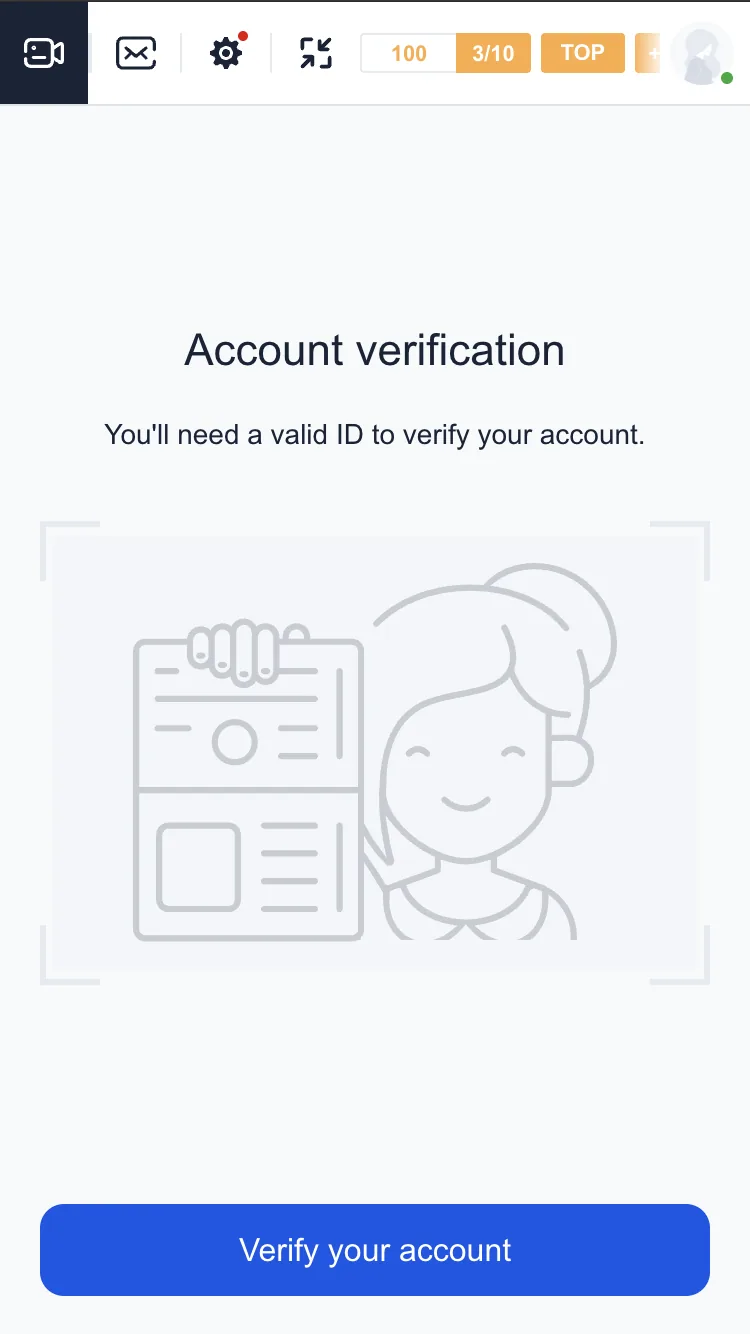
Start the recording
Allow the camera when the browser asks, have your document in hand, and tap Record video. The whole check is one continuous recording, so keep the document within reach. Pre-recorded videos and photos are not accepted — it has to be recorded live.

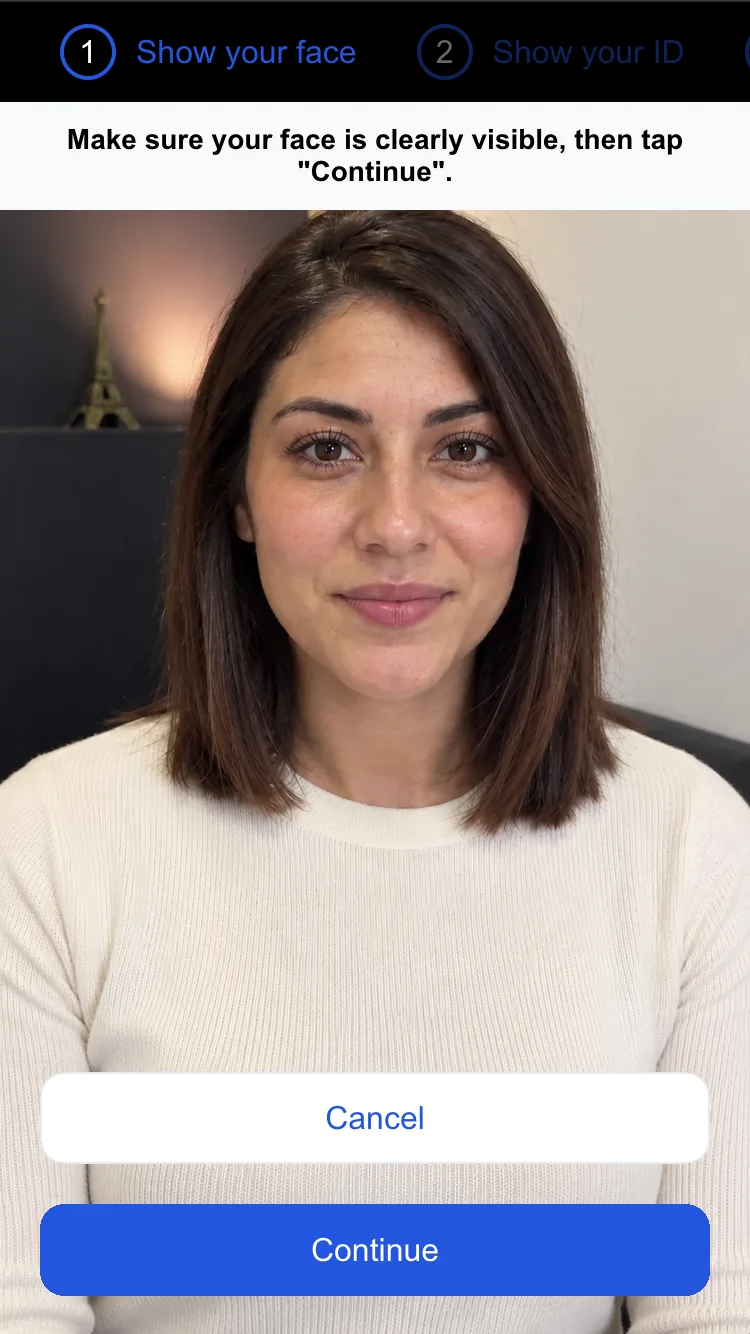
Step 1. Show your face
Keep your whole face clearly visible and well-lit, looking straight at the camera. When the picture is sharp, tap Continue.
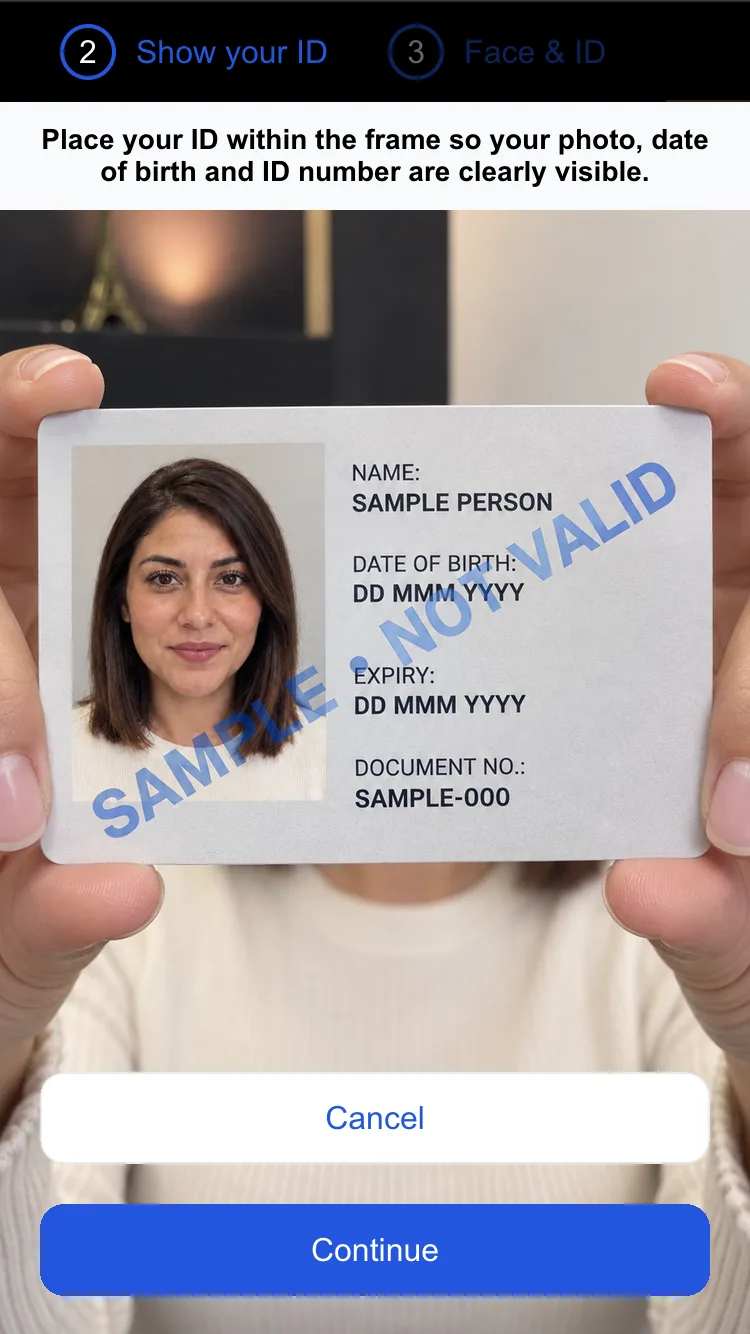
Step 2. Show your document
Bring your ID toward the camera slowly and hold it close, until your date of birth, your name and the document number are large and sharp on screen. Keep it steady for a moment so the moderator can read every line, then tap Continue.
Step 3. Show your face and document together
Hold the document up next to your face so that both your face and the document are clearly visible in the same frame. Keep still, then tap Continue.

Review and send
This is the step that decides whether you pass. Watch your whole recording to the end before you send it, and check:
- your face is clear and well-lit in every part;
- the document’s date of birth, first and last name, and document number are all readable;
- nothing is blurry, cut off or covered by glare.
If anything is unclear, tap Re-record and do that part again — slower and closer. Only when everything is readable, tap Send video.

Wait for the result
After you send, you’ll see a confirmation that your request was submitted. This means it has reached the moderation team — not that it is already approved. A moderator reviews it and you’ll be notified of the result. You may occasionally be asked to record again or provide an extra check; if so, follow the same habits above.
What’s next
- Create your account and sign in — if you haven’t registered yet.
- Make your first conversation feel natural — what to do once verification is approved.
- Try the interactive demo — see how chats, gifts and messages work.