














Before you start
Registration takes about five minutes. Have these ready:
- You are 18 or older. The platform checks this with your identity document during verification, right after registration.
- A phone or computer with a working camera and microphone. They are needed for verification and for every video chat.
- An email address you can open right now — or an Apple, Google, X, Yandex, VK or Mail.ru account you want to sign in with.
- A valid identity document — a passport, national ID card or driving licence. You will show it to the camera during verification.
One woman — one account. The platform allows each woman only one account. Once you have passed verification on one account, verification will not be approved on any other account. If you still try to keep several accounts, both of them — the old one and the new one — may be blocked. If you have registered before, sign in to that account instead of creating a new one; there is a “Forgot your password?” link in the sign-in window.
The screenshots below show the English interface. If you switch the platform to your language, the screens look the same — only the words change.
Step 1. Open the registration page and choose “Female”
Start from the Register for free button on Flirt for Cash. It opens the partner platform's registration page in your browser; registration and verification take place there, not on this site.
The first screen asks you to select your gender. Tap Female. The interface language can be changed in the top-right corner.

Step 2. Confirm your choice
A confirmation window appears: Continue as female. You won't be able to change your account type later. Check that “female” is highlighted and tap Continue. This matters because only female accounts can earn on the platform.
Tapped “Male” by mistake? If you haven't confirmed yet, tap Close and choose again. If you already tapped Continue, you can still start over before you register — the platform only remembers your choice in your browser, so just reset it:
- Easiest — open a private window. A private (incognito) window has no saved choice, so the gender screen opens fresh. In Safari, tap the tabs icon, then Private; in Chrome, tap ⋮, then New Incognito Tab. Open the site there and choose Female.
- Or clear this site's data. On iPhone: Settings → Safari → Advanced → Website Data, find the platform in the list and swipe left to delete it. Reload the page and the gender screen comes back.
Then choose Female and tap Continue.

Step 3. Read and confirm the rules
The platform shows its rules before you can go on, and warns that breaking them can lead to a permanent ban with no way back — and to any new accounts being banned too. The bans that are final are for the serious violations: anything involving minors, pretending to be under 18, or content banned by law. Read all the rules to the end. In short, it is prohibited to:
- pretend to be under 18, or let anyone think you are a minor;
- share confidential information: other users' names and nicknames, personal information or private conversations;
- record conversations in any format — audio, photos or video;
- ask for gifts;
- contact minors, or use a photo of anyone under 18 as your profile picture;
- stream content that involves minors or is banned by law;
- use offensive or abusive language, post discriminatory content, or promote violence, terrorism or fascism.
If you ever come across such content, report it straight away with the Report button — not reporting it can get your own account suspended. The rules also confirm that you are 18 or older and that you accept the Privacy Policy, Cookie Policy and Terms and Conditions. Scroll to the bottom and tap I confirm.

Step 4. Open the sign-up window
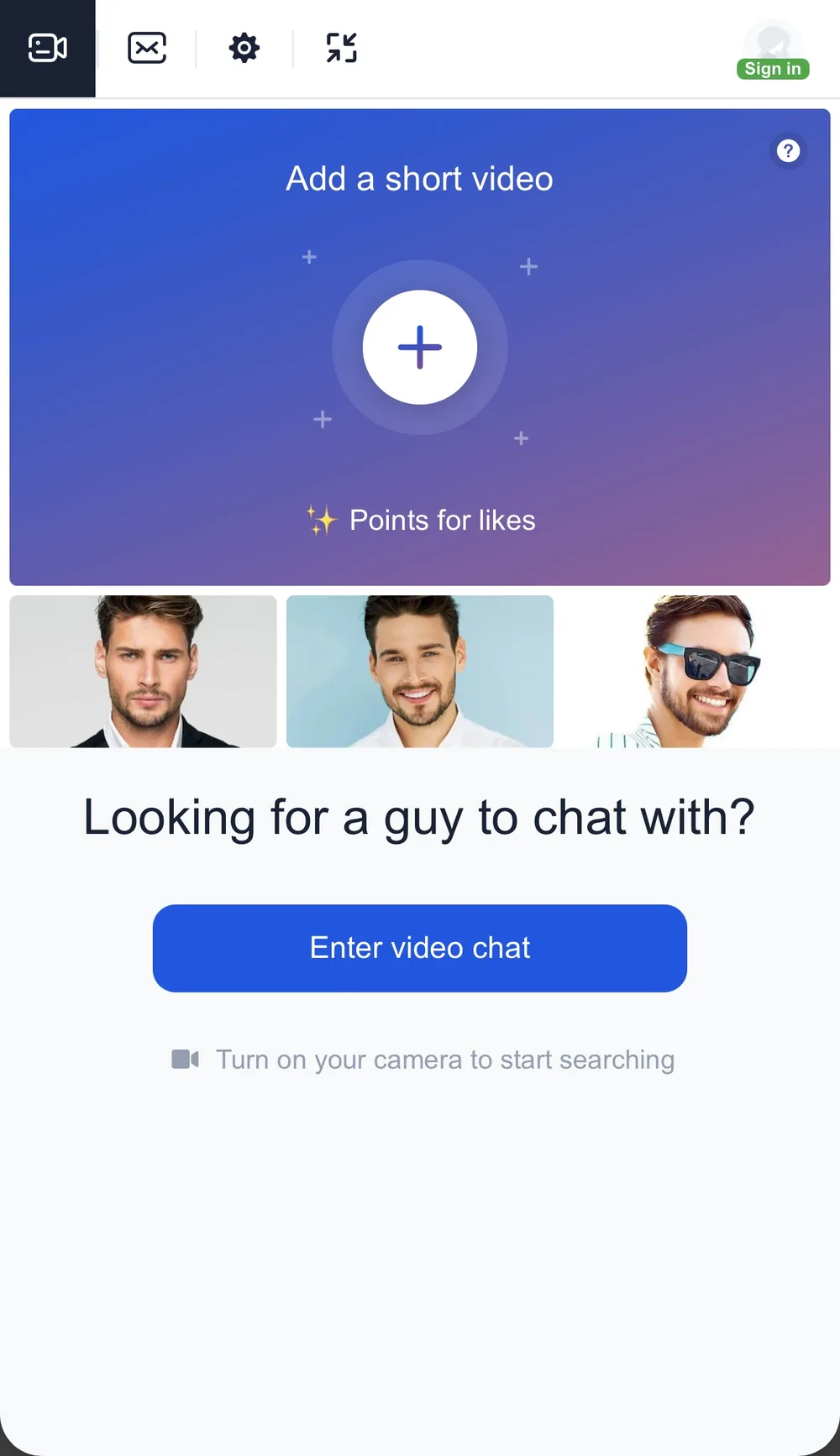
You are now on the main screen: men's video previews on the left, the Enter video chat button below them and Sign in in the top-right corner. An account is needed to continue. Tap Sign in — the Sign up window opens (the Sign in button in its corner is for existing accounts). Tapping Enter video chat leads to the same window.
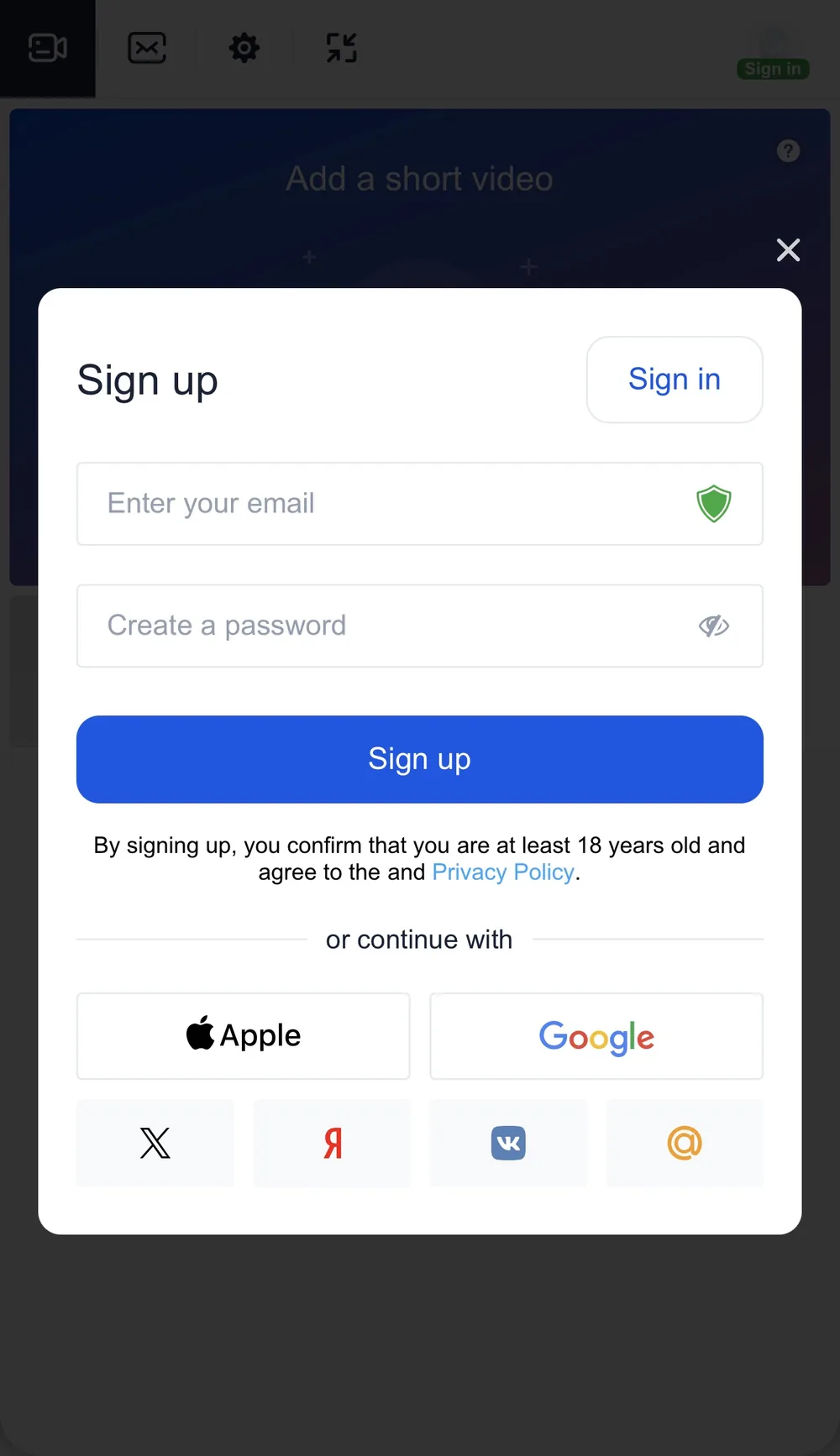
Step 5. Create your account
There are two ways to register, and both are free:
- Email and password. Enter your email, create a password and tap Sign up. Use an email you can open right now — it is the only way to restore access if you forget the password. Choose a password you do not use anywhere else and save it in your phone's password manager.
- A social account. Tap Apple, Google, X, Yandex, VK or Mail.ru and confirm the sign-in in the window that opens. The platform only receives your name and email from that service; your password stays with Apple or Google.
By signing up you confirm that you are at least 18 years old and agree to the Privacy Policy.
Already have an account? Choose Sign in instead, enter the same email and password or tap the same social button you registered with. If you forgot the password, tap Forgot your password? — a reset link is sent to your email. Do not register again: see the one-account rule above.
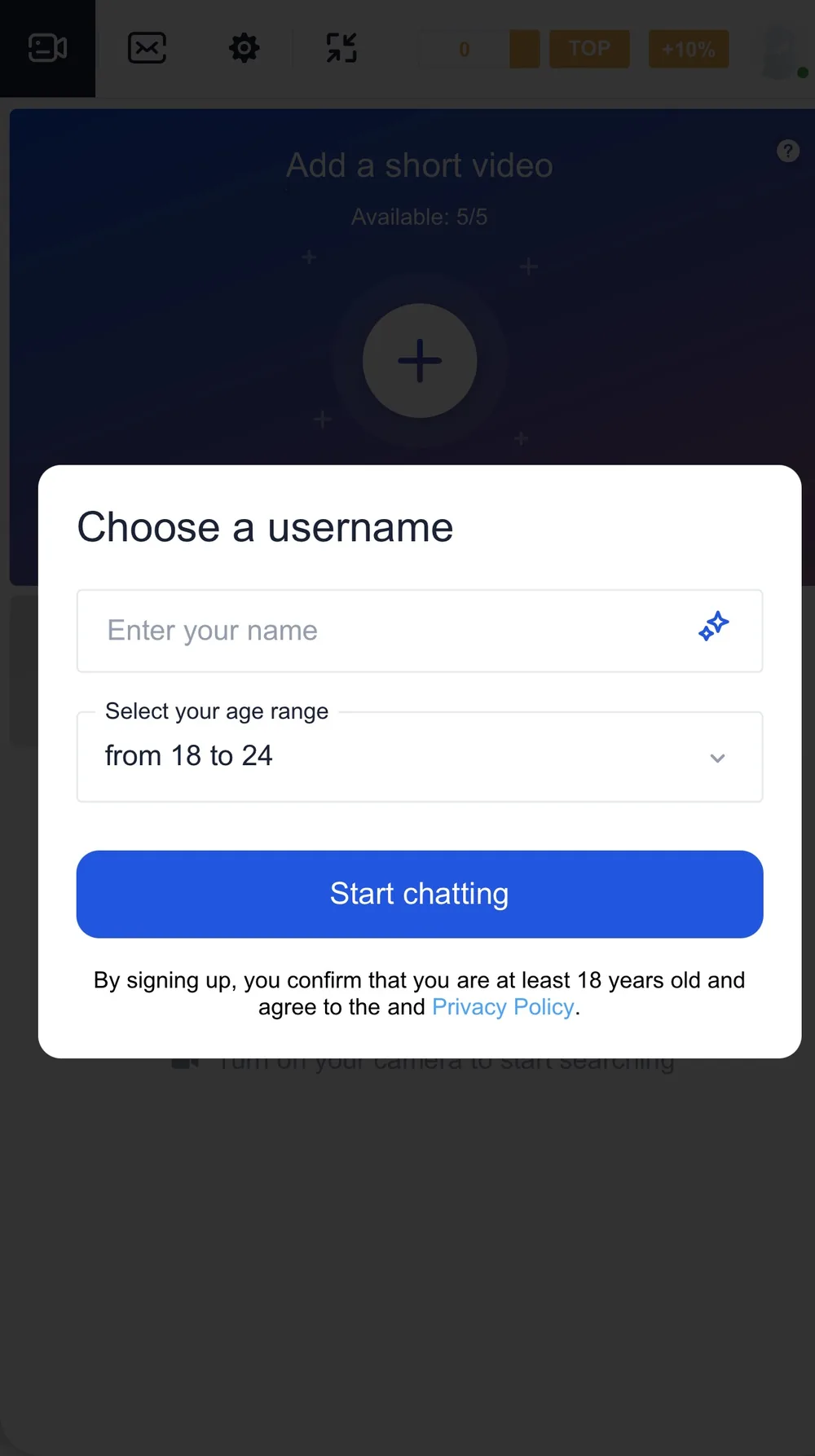
Step 6. Choose a username and age range
Right after registration the platform asks for two things:
- Your name — this is what men see in chat. Use a first name or a nickname, not your full real name, and never add contact details to it.
- Your age range — select the range that matches your real age, for example “from 18 to 24”. Your document is checked at verification, so the range must be true.
Tap Start chatting. Your account is created — you are signed in and can see the main screen with your profile in the top-right corner.
Step 7. Verify your account
Before you can chat and earn, the platform has to confirm that you are an adult and a real person. The Account verification screen says: You'll need a valid ID to verify your account. Tap Verify your account.
Your browser will ask to allow access to the camera and microphone — choose Allow (or “Allow while visiting the site”). Then you record a short video: your face, your document and both together. Every screen of that process is explained in Complete your age and identity verification.

If the camera is blocked or unavailable
If you see Camera access is blocked or unavailable, the browser did not get permission or another app is using the camera. Fix it in this order:
- Allow the camera and microphone for the site in your browser: tap the settings icon next to the address bar → Site settings → Camera and Microphone → Allow. On iPhone also check Settings → Safari → Camera (or Chrome → Camera) and select “Allow”.
- Close other apps that may be using the camera — video calls, Instagram, TikTok or another browser tab with the platform open.
- If you use an external camera, reconnect it.
- Tap Try again. If nothing changes, reload the page or open the platform in another browser (Chrome or Safari).

Registered before? Do not create a second account
If you already had an account on the platform, sign in to it. Verification is tied to one person: after it has been passed on one account, it will not be approved on another, and keeping several accounts can get both of them blocked. If you cannot sign in, use Forgot your password? in the sign-in window and check your email for the reset link.
What's next
- Complete your age and identity verification — the next step, screen by screen.
- Make your first conversation feel natural — how to start once verification is approved.
- Try the interactive demo — see how chats, gifts and messages work before your first conversation.