














When your picture is steady and your voice is clear, the other person can follow you without asking you to repeat yourself. Check the devices selected for your calls, then work through any problem below.
Set a steady, comfortable frame
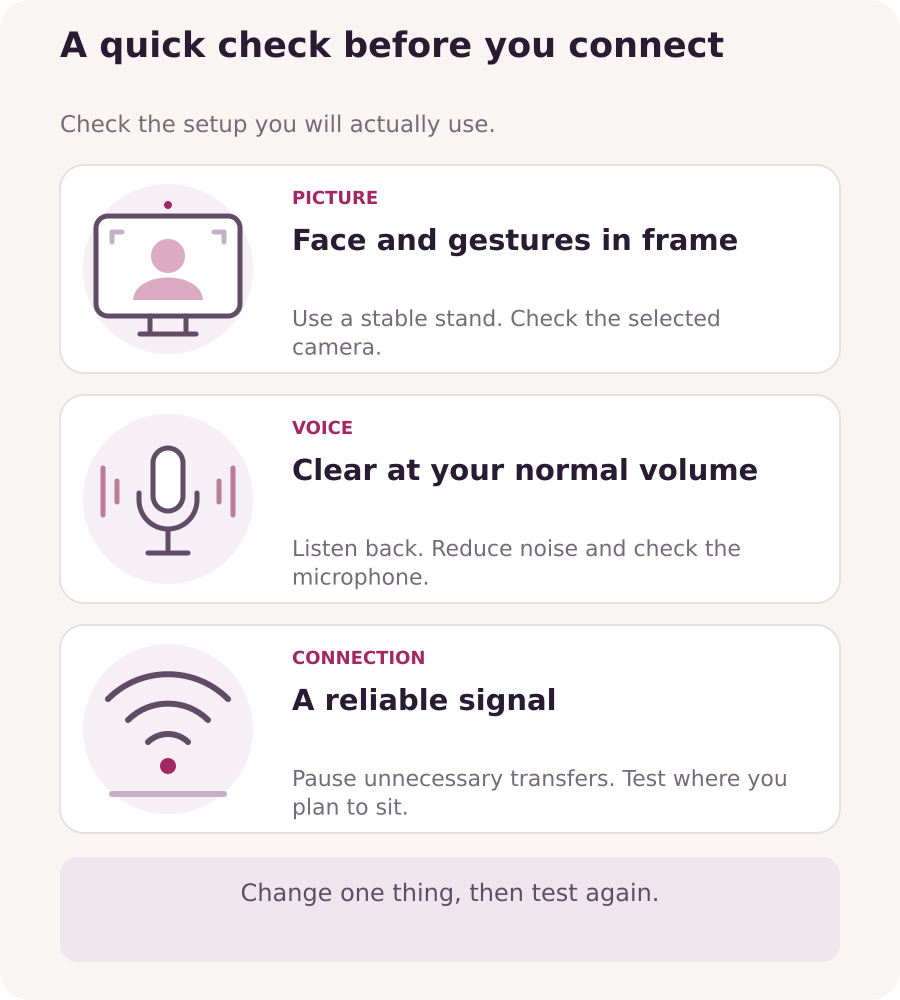
Clean the camera lens gently with a suitable soft cloth. Place your phone or computer on a stable surface or stand, with the lens near eye level. Adjust your distance so your face, shoulders and natural gestures fit comfortably in the picture. Sit and move as you normally would; you should not have to hold an awkward pose.
Open the platform’s camera preview and check that the intended camera is selected. Look at the picture while speaking and turning your head. Look towards the lens occasionally, then back at the screen to follow the conversation. You do not need to stare at the camera continuously.
Listen to your own voice
Record a few sentences of your own voice at your usual speaking volume, without recording another person or a live call. Turn your head naturally and listen back. Check for a faint or distorted voice, rubbing sounds, fan noise or a television in the background. A local recording checks that setup; it does not confirm which microphone the platform uses or how a live call will sound.
Reduce avoidable background noise and keep your hand or phone stand clear of the microphone. If you use a separate microphone, follow its placement instructions and keep it out of the way of your face. After connecting headphones or a headset, check the selected microphone and speaker again in the platform or browser settings available to you.
Fix one problem at a time
- Camera or microphone unavailable: check the selected device and the site’s permissions. Your browser or app may also need permission in your device settings. Close another app that may be using the camera, then reopen the chat page when you are out of a call.
- The other person cannot hear you: check that you are not muted and that the intended microphone is selected. If you use a headset, check its mute control too. Use the platform’s microphone test or level indicator if one is available.
- Echo or repeated sound: lower the speaker volume or try headphones. Avoid two nearby devices playing the same call’s audio. The echo may come from either side, so the other person may need to check their setup too.
- Frozen picture or broken sound: pause unnecessary downloads, uploads and cloud backups. With Wi-Fi, try a position closer to the router; on a computer, test a wired connection if available. Change one thing, then check again. A clear local preview does not guarantee a stable live call.
Give support a useful description
If the problem continues, note your device and operating system, browser or app, connection type, approximate time and time zone, whether it affects every call and what you already tried. Copy the exact error message if there is one. Use the usual support channel and share only the details needed to explain the problem.
For example: “On my Windows laptop in Chrome over Wi-Fi, the other person stops hearing me after about a minute. It happens on every call. I checked mute, selected the built-in microphone and closed the other calling app.” A screenshot of an error can help, but crop out private messages, personal details and other people’s images. Never include passwords, sign-in codes or personal sign-in links.
Before your first call
- The intended camera and microphone are selected and enabled.
- Your face and natural movements stay comfortably in the frame.
- Your voice sounds clear in a self-test at normal speaking volume.
- Unnecessary transfers are paused and the connection has been checked where you plan to sit.
- Your device has enough charge or a reliable power connection.
At the start of your first call, confirm that the other person can see and hear you clearly. Once everything works, keep the setup simple and give the conversation your attention.